Recode your books to the right GL accounts, in bulk. Meet Reclassify.
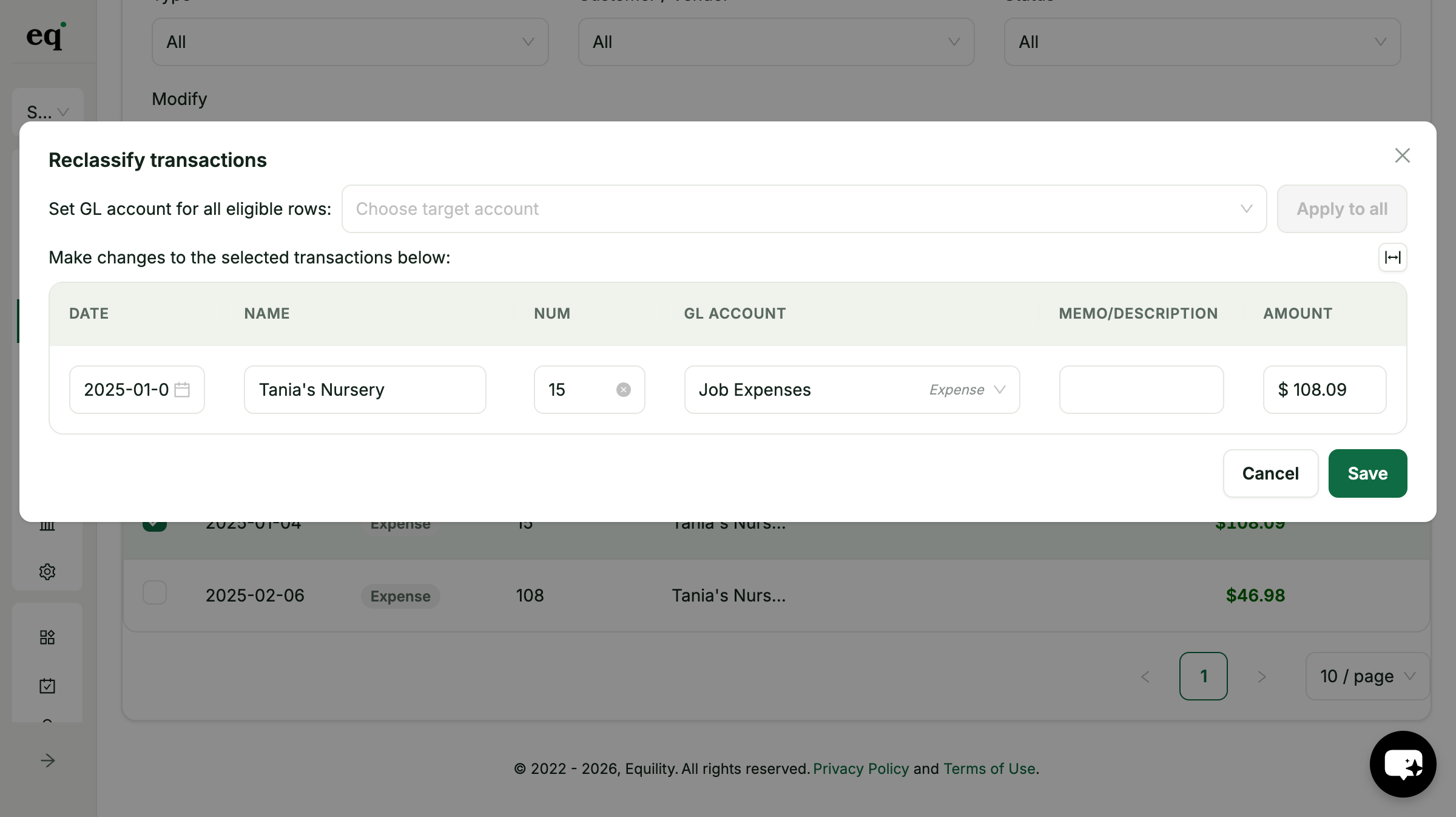
Filter to the transactions that are miscoded, set the right GL account, and apply it across all of them at once. You review every row before it writes back to QuickBooks, so you can fix a whole month without going one transaction at a time.
Re-code in bulk, in one pass
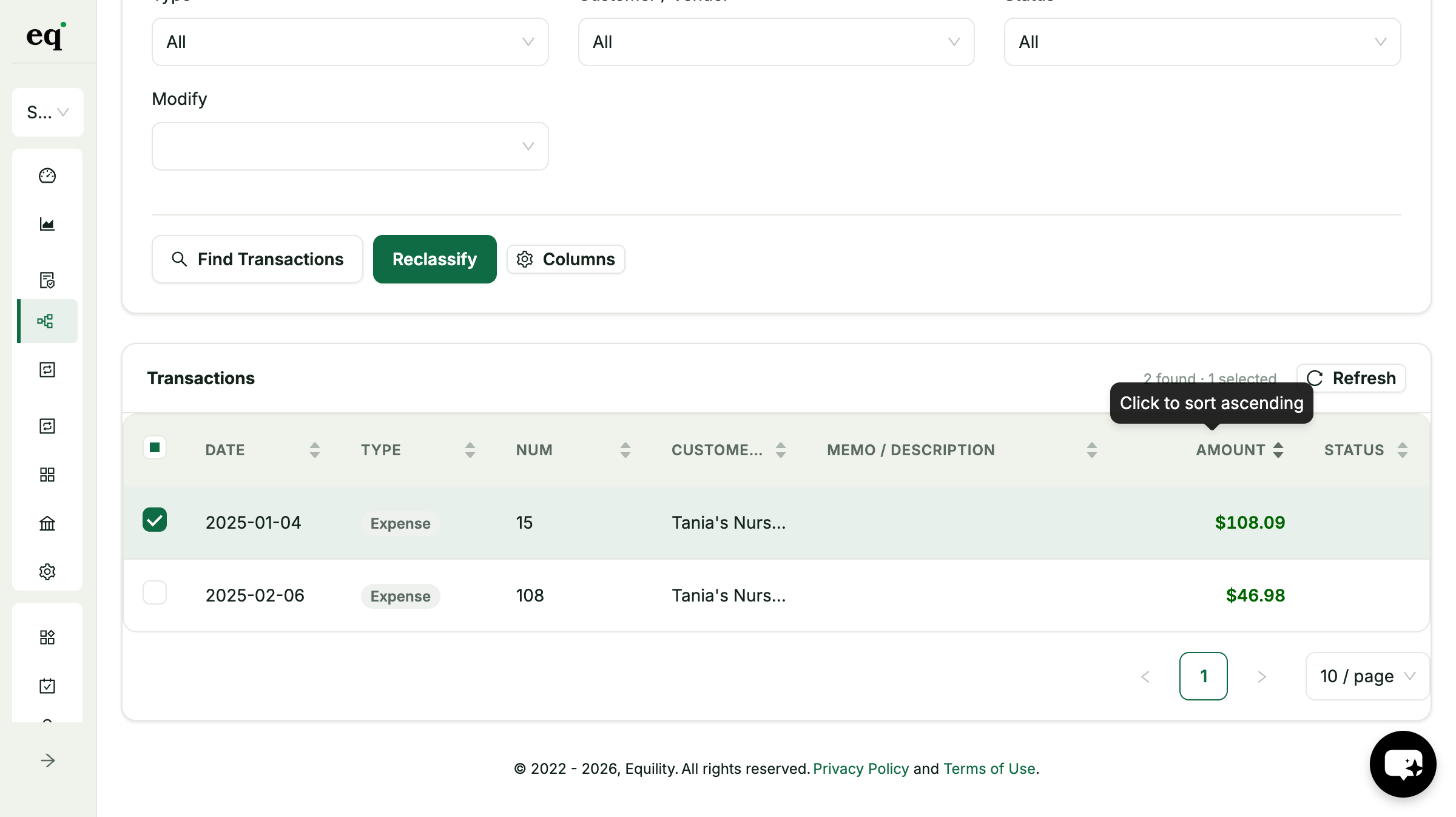
Select every miscoded transaction, set the right GL account, and apply it to all of them at once. What used to be one transaction at a time is now a single action.
Filter to exactly what to fix
Narrow by account, date range, type, customer or vendor, and status to surface just the transactions that need re-coding, so nothing else gets in your way.
See every change before you save
A clear row-by-row view of each selected transaction: date, name, current GL account, memo, and amount. Adjust the fields you can, review the whole batch, then save.
Edit the details inline
Beyond the account, adjust the date, name, number, or memo before you save. Set the batch the way your books should read.
Type-aware, so you can't break your books
Reclassify knows each transaction's type and locks the fields QuickBooks manages itself, like the amount on a payment or the account on an itemized invoice, so a bulk edit never leaves your books out of balance. When a field is locked, it tells you why.
Synced straight to QuickBooks
Reclassify reads and writes directly to QuickBooks Online. Your changes land in your books with no export, no re-keying, and no copy-paste.
How Reclassify works
From an uncategorized charge to clean, coded books in four steps
Filter to what's miscoded
Narrow by account, date range, type, customer or vendor, and status to find the transactions to fix
Select the batch
Tick the transactions you want to re-code: one, a handful, or a whole month
Set the account & review
Choose the target GL account, apply it to all, and review every row before saving
Save, straight to QuickBooks
Write the reviewed changes back to QuickBooks Online, with no export or re-keying
Filter to what's miscoded
Narrow by account, date range, type, customer or vendor, and status to find the transactions to fix
Select the batch
Tick the transactions you want to re-code: one, a handful, or a whole month
Set the account & review
Choose the target GL account, apply it to all, and review every row before saving
Save, straight to QuickBooks
Write the reviewed changes back to QuickBooks Online, with no export or re-keying
From inconsistent coding to clean, consistent books
See how Reclassify cleans up months of miscoded transactions in a few clicks
Inconsistent and miscoded
The same vendor coded three different ways across three months, and charges sitting in the wrong accounts.
Re-code the whole batch at once
Select the miscoded transactions, set the right GL account, review every row, and apply it to all of them in one action.
Clean books, synced to QuickBooks
Your changes write straight back to QuickBooks Online, and your books read consistently from one month to the next.
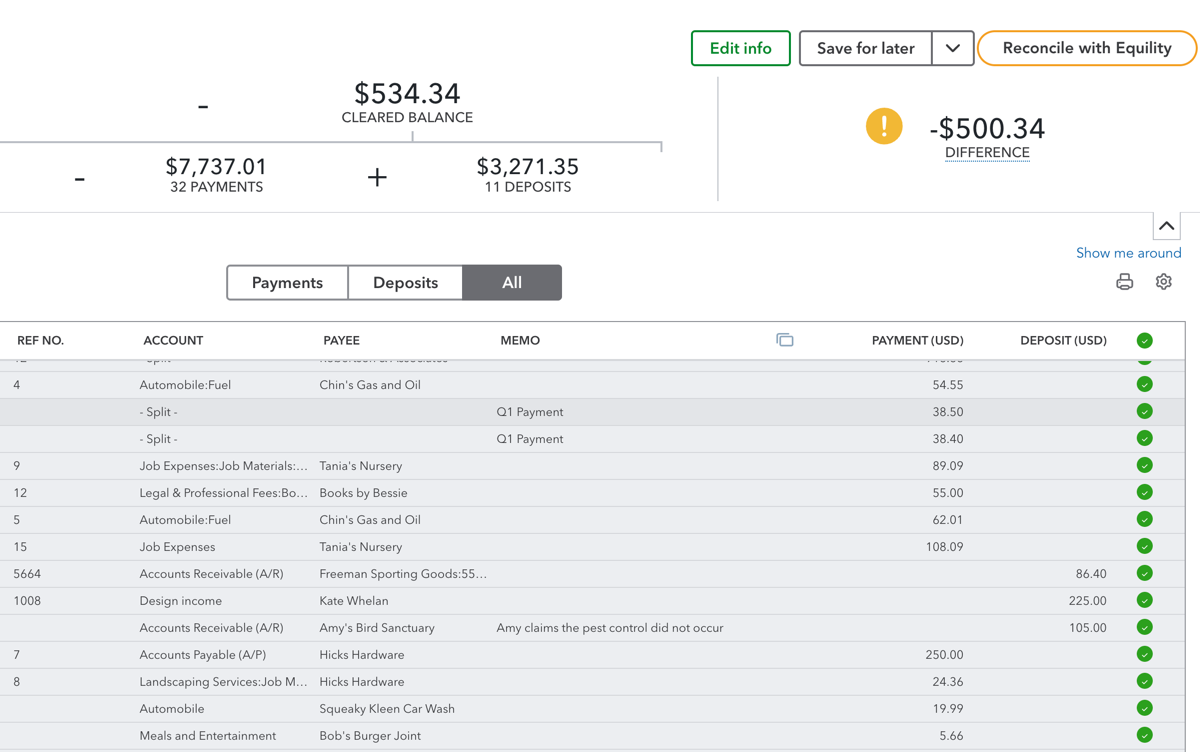
"Tired of re-coding the same miscategorized charges one at a time, for the same vendors, month after month?"
Key benefits of bulk GL re-coding
Clean up your chart of accounts fast, without the one-by-one grind:
Request a demo- Re-code dozens of transactions to the right GL account in a single action
- Filter by account, date, type, customer or vendor, and status to find exactly what's miscoded
- A row-by-row review of every change before you save, with the editable fields open for adjustment
- Edit the account, name, memo, or date on the rows that allow it before you save
- Type-aware guardrails that keep locked fields safe, so a bulk edit never unbalances your books
- Reads and writes directly to QuickBooks Online, with no export and no re-keying
- Pair it with AutoRec when you want AI-suggested coding and reusable mapping rules
- One place to clean up months of inconsistent coding before close
GL cleanup, done in bulk
to apply across a batch
of changes reviewed before save
saved every close
synced straight to QuickBooks

Equility’s bank reconciliation wizard turned a messy, hour-long process of reconciling my business accounts into an automated, 5-minute solution.
Jeff Chadwick
Chadwick Creative
Where has this been all my life!
Lisa Culverwell
Miss Elsie’s BookkeepingIntegrates seamlessly with the tools you already rely on.
Integration with



QuickBooks GL reclassification: common questions
How does Reclassify work?
Filter to the transactions you want to fix, select them, choose the right GL account, and apply it to all of them at once. You can review and adjust each row before saving, and the changes write straight back to QuickBooks Online.
Can I reclassify many transactions at once?
Yes, that's the point. Select a batch of transactions, set the target GL account, and apply it to all of them in one action. It's built for cleaning up months of inconsistent coding fast, instead of fixing one transaction at a time.
Does Reclassify use AI to pick the account?
No. Reclassify is for fast, manual bulk re-coding: you choose the GL account and apply it across the transactions you select. AI-suggested mappings with confidence scores are part of AutoRec, where the AI proposes a GL account for each transaction during reconciliation.
Can I review changes before they're saved?
Yes. Before anything is written back to QuickBooks, you see every selected transaction with its date, name, current GL account, memo, and amount, and can adjust the fields that aren't locked. Nothing changes until you click Save.
Which transactions can I reclassify?
Most transaction types, including expenses, deposits, journal entries, bills, and payments. Reclassify is type-aware: on some types it locks the fields QuickBooks manages itself, such as the account on an itemized invoice or the amount on a payment, and shows you why, so a bulk change can't unbalance your books.
How does Reclassify relate to AutoRec?
They work together. AutoRec matches your bank and QuickBooks transactions and uses AI to propose GL mappings with confidence scores during reconciliation, and it's where you save reusable mapping rules. Reclassify is where you re-code transactions in bulk by hand. AutoRec brings the AI and the rules; Reclassify brings the fast manual cleanup.
Your Next Close Is Already Counting Down
Every hour your team spends on manual reconciliations is an hour they're not doing higher-value work. Equility handles the matching, the checks, and the errors — so your close takes hours, not days.